










Losing photos and important files can be stressful, especially when they contain years of memories or essential work. A damaged computer, lost phone, failed drive, accidental deletion, or household problem can make files disappear without warning.
The good news is that backing up your data does not have to be complicated. With a few reliable storage options and a simple routine, you can protect your files and make them easier to restore when needed.
What Is a Backup?
A backup is an extra copy of a file stored somewhere other than its original location. For example, if your photos are saved on your phone, a copy on an external drive or cloud service is a backup.
Simply moving files from one folder to another on the same device is not a complete backup. If that device fails, both copies may be lost. A useful backup plan keeps copies in different places and, when possible, on different types of storage.
Backups can protect:
– Photos and videos
– Personal documents
– School or work files
– Music and creative projects
– Address books and other important data
– Device settings and app information
Follow the 3-2-1 Backup Rule
A simple way to plan your backups is the 3-2-1 rule:
– Keep at least three copies of important files.
– Store those copies on at least two different types of storage.
– Keep at least one copy in a different physical location.
For example, you might keep the original photos on your computer, a second copy on an external drive, and a third copy in a cloud storage account. If your computer is damaged, you still have other options.
You do not need to follow this rule perfectly for every file. However, it is a useful goal for photos and documents that would be difficult or impossible to replace.
Choose What to Back Up
Start by making a list of the files that matter most. This helps you focus your time and storage space.
Important items may include:
– Camera and phone photos
– Videos and recordings
– Tax, school, or work documents
– Writing, design, or music projects
– Scanned family records
– Saved email messages
– Password recovery information
– Files stored on old computers or memory cards
You may not need to back up temporary downloads, duplicate files, or applications that can be downloaded again. Review your folders and remove obvious duplicates before making a large backup. This can reduce storage use and make future backups faster.
Use an External Drive
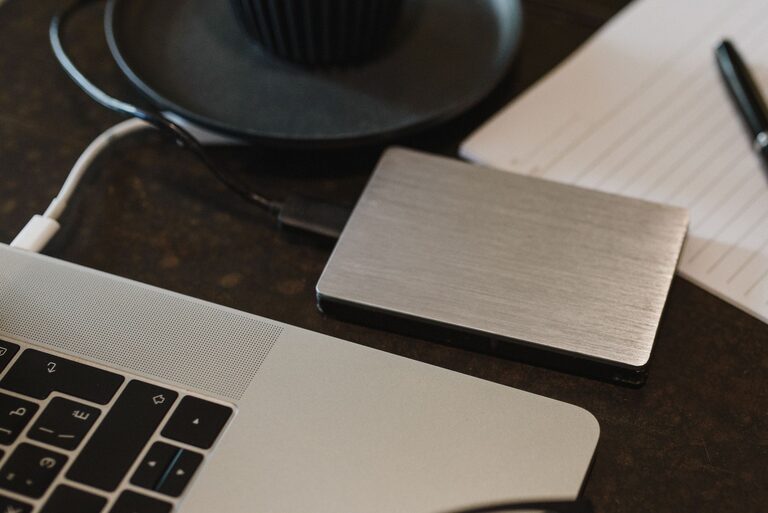
An external hard drive or solid-state drive is one of the simplest ways to create a local backup. These drives connect to a computer with a cable and are available in many sizes.
How to back up to an external drive
- Choose a drive with enough space for your files.
- Connect it to your computer.
- Create a folder with a clear name, such as “Photo Backup” or “Files Backup.”
- Copy important folders to the drive.
- Open several files from the drive to confirm that the copies work.
- Safely eject the drive when finished.
Use clear folder names and dates to make backups easier to understand. For example, you could create folders called “Photos 2025” and “Documents September 2026.”
A drive used only for backup should be disconnected when you are not using it. If it stays connected all the time, it may be affected by accidental deletion, malware, or a power-related problem. Store it in a cool, dry place away from spills and extreme temperatures.
Consider Cloud Storage
Cloud storage keeps your files on remote servers that you access through the internet. Many services can automatically back up photos from phones and sync files from computers.
Cloud storage can be helpful because:
– Your files are available from multiple devices.
– Copies are stored away from your home.
– Automatic backups can reduce the chance of forgetting.
– You can restore files after losing or replacing a device.
Before choosing a service, check its storage limits, supported devices, file recovery features, and privacy settings. Some services keep deleted files for a limited period, while others offer longer recovery windows.
Cloud storage is not a replacement for every other backup. If an account is locked, a file is deleted, or a service changes its features, you may need another copy. For especially important photos and files, combine cloud storage with an external drive.
Back Up Photos From Your Phone
Phones often contain thousands of photos, but they can be lost if the phone is damaged or replaced. Turn on automatic photo backup if your chosen service supports it.
After enabling automatic backup:
– Confirm that new photos are uploading.
– Check whether videos are included.
– Review the available storage space.
– Learn how to access your photos from another device.
– Keep the phone connected to Wi-Fi during the first large upload.
– Avoid deleting photos from the phone until you confirm the backup is complete.
Some services offer options such as storage-saving quality or original-quality uploads. Read the service settings carefully so you understand how your photos are stored. If image quality matters, choose an option that preserves the original files when practical.
Make Backups Automatic
Manual backups are useful, but they are easy to forget. Automatic tools can copy files on a schedule or whenever a device is connected.
Many computers include built-in backup features. You can also use a cloud service or backup application that watches selected folders. Automatic backups work best when you choose specific folders and check the settings occasionally.
Set a reminder to verify that backups are still running. Look for the date of the most recent backup and any warning messages. A backup that has not run for months may give a false sense of security.
Test Your Backups
A backup is only useful if you can open and restore the files. Test your backups several times a year.
To test a backup:
- Choose a few photos and documents.
- Open the copies from the external drive or cloud service.
- Check that the files are complete and readable.
- Try restoring a file to a different folder.
- Review whether the backup includes the folders you expected.
Do not wait for an emergency to discover that a drive is damaged or that a cloud folder was never included in the backup.
Protect Your Accounts and Devices
Good backup habits should include basic account and device security. Use a strong, unique password for your cloud storage account and turn on available sign-in protections. Keep your computer and phone updated so they receive important reliability and security improvements.
Avoid sharing backup drives casually. Anyone with access to an unprotected drive may be able to view its contents. If your files are private, review the privacy and security features offered by your storage tools.
Create a Simple Backup Routine
A practical routine is better than a complicated plan that you will not maintain. Try this schedule:
Every week
– Let your phone upload new photos.
– Check that automatic computer backups are running.
– Copy recently created important files if needed.
Every month
– Connect your external backup drive.
– Review the newest backup date.
– Open a few files to confirm they work.
– Remove unnecessary duplicates.
Every few months
– Test restoring several files.
– Review cloud storage space.
– Update your list of important folders.
– Replace an aging or unreliable drive when necessary.
Final Thoughts
Backing up your photos and files is an ongoing habit, not a one-time task. Start with the files that would be hardest to replace, keep copies in more than one location, and use automatic tools whenever possible.
A combination of cloud storage and an external drive provides a strong foundation for most households. By checking your backups regularly and testing file restoration, you can feel more confident that your memories and important information will be available when you need them.